









30 Creative Presentation Ideas To Boost Your Next Talk
Thirty creative presentation ideas with visual examples, from openers to interactive formats, so your next deck stands out for the right reasons.

Contents (32)
Presentations are not easy to do, we get that. They’re time-consuming, stressful, and more often than not, boring. But it doesn’t have to be that way. With the help of the right tools and tricks, you can create an interesting speech in a short period of time without much effort.
Here are 30 creative presentation ideas that you can incorporate into your next talk to give it that extra punch.
Ideas 1 to 10 cover story, imagery and slide craft. Ideas 11 to 30 add structure, data, audience interaction and delivery techniques that we teach in our presentation skills training, each with a way to apply it and an example from everyday business presenting.
Presentation Idea #1 Share a Story: Make it Personal

In general, we recall life’s experiences through moments, not days. Similarly, it is human nature to remember intricate stories, not facts.
What are the most effective creative presentation ideas to make your next talk memorable?
The most effective creative presentation techniques include: opening with a provocative question or unexpected story, replacing bullet-point slides with a single powerful visual per concept, using live demonstrations or physical props, incorporating real-time audience polls, structuring your narrative around a hero’s journey rather than a feature list, and ending with a specific challenge or commitment rather than a generic “thank you” slide.
What creative presentation formats can make your next talk more engaging and memorable?
To make your next presentation stand out, experiment with non-linear formats like PechaKucha (20 slides x 20 seconds), igniting a story-driven arc with audience participation moments, or using a “live demo” approach where you build the key idea in real time. Structure your content around a central narrative hook, vary slide density to control pacing, and close with a specific, actionable takeaway that the audience can apply immediately.
In a study conducted by two Stanford professors, they found that the students tested were able to recall words that played a part in constructed stories about six to seven times better than a random set of unrelated words.
This is why presentation storytelling and using narratives is so powerful: it drives that important message home, and inspires action from your key stakeholders or audience.
To make a statement, and leave an impactful message in the minds of your audience, weave a story of a personal situation into your presentation. Share an anecdote, a short story, or a memorable incident related to your talk.
One good example to learn from would be fellow Singaporean Darren Tay’s speech during the World Championship of Public Speaking.
https://www.youtube.com/watch?v=v6H5vY7ujl4
In his speech, Darren narrates an intriguing story of a school bully, and linked it to his message of getting the audience to face their own inner bully, acknowledging its presence, and overcoming it. If he had simply made a point, it would have been forgotten in minutes. However, Darren’s personal story made the audience empathise, driving the key message deeper into their minds.
Presentation Idea #2 Use the Hero’s Journey to Create Your Narrative
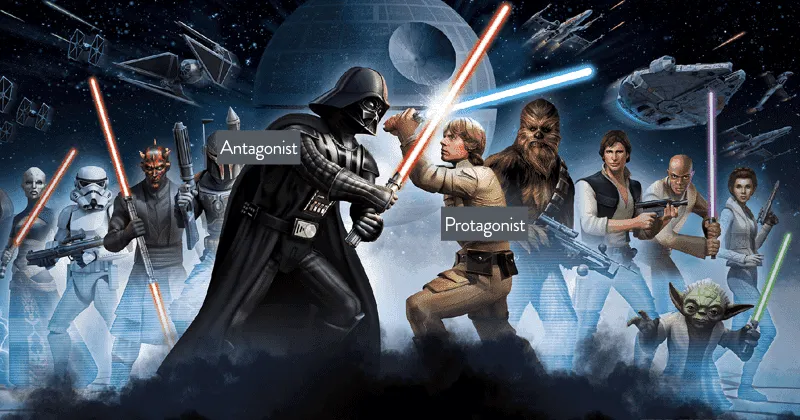
We’ve all heard of Star Wars, it’s one of the most successful movie franchises around. But how did it retain an enthusiastic cult even 40 years after its debut?
Well, fans have the monomyth (also known as the hero’s journey) to thank, as the application of this evergreen narrative pattern has allowed us to experience an individual’s journey from start to end. With a strategic sequence of actions, we witnessed a beloved character (Luke Skywalker) leave his world of comfort to face an awakening (The Sith), before returning stronger to conquer the ordeal at hand (as a Jedi Master).
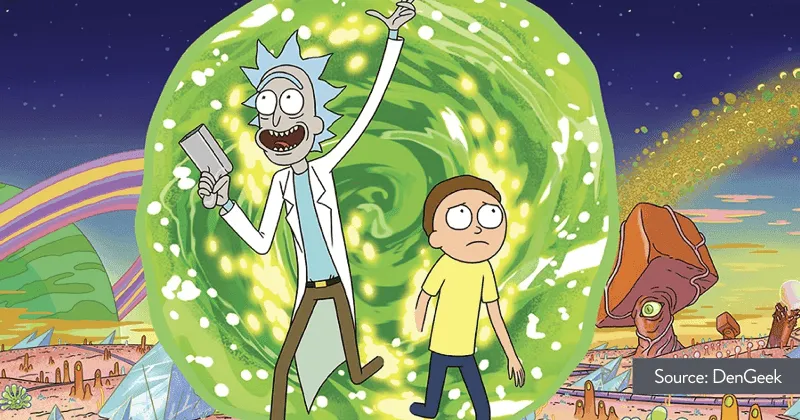
In the original monomyth popularized by Joseph Campbell, there are quite a few steps which may not always be obvious in a hero’s journey. Justin Roiland, the creator of the well-known series ‘Rick & Morty’, uses Dan Harmon’s simplified edition of the monomyth also called the ‘story circle’.
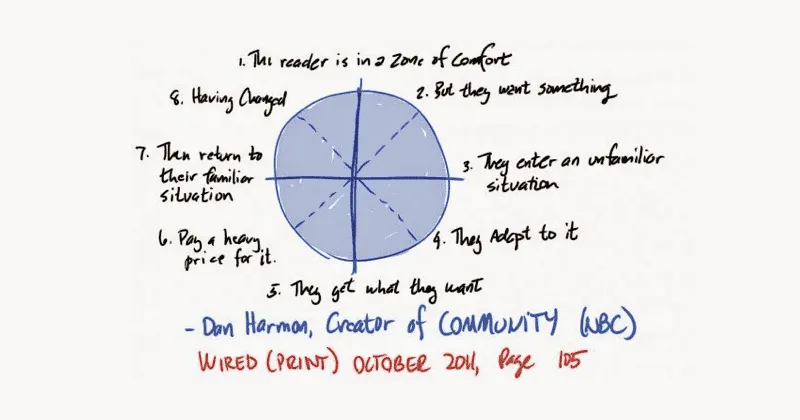
Justin has credited this deceptively simple circle for the riveting yet seemingly nonsensical plot of the series’ episodes that has drawn a cult following of millions of fans worldwide.
This can be applied to your presentations as well. When you bring the audience on a journey, placing them in the shoes of the hero, you can influence them to see the outcome you’re seeking, and the steps needed to get there. Think of your slide narrative as a story, where you show them the beginning (the problem they face), the middle (the actions they need to take) and the end (the ultimate goal of your speech).
We sometimes also see occurrences of this in investor pitch decks.
Presentation Idea #3 Break Your Presentation into 3 Big ‘Acts’
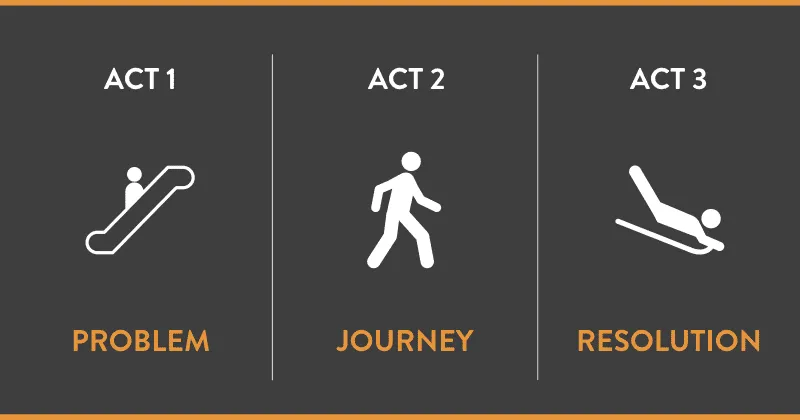
From literary classics like Three Little Pigs and A Christmas Carol, to slogans like the Olympics’ Citius, Altius, Fortius, it has been proven that characters or events grow on us when they are grouped in threes to emphasize an idea.
In the presentation sphere, this writing principle (the rule of three as we call it) has allowed contemporary speakers like Steve Jobs and Barack Obama to convey high-level information in a simple and catchy manner. A Steve Jobs keynote style suits a stage but not every room, as we explain in why not every presentation should be like his.
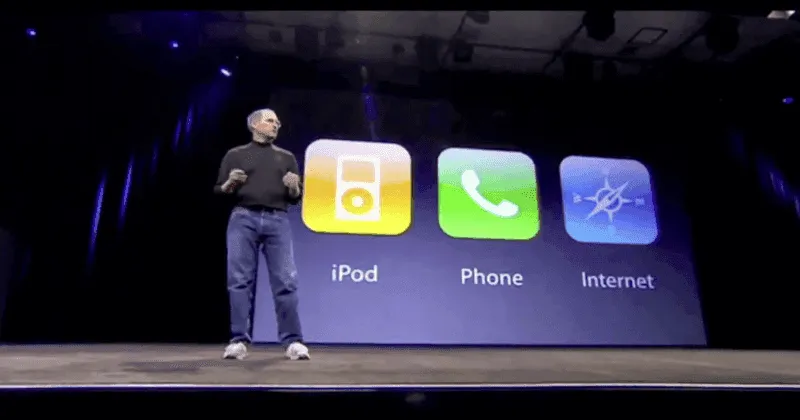
For example, when he shared with the world a decade ago that Apple would launch the revolutionary iPhone, Steve Jobs said:
“Today, we’re introducing three revolutionary products of this class.
The first one: is a widescreen iPod with touch controls.
The second: is a revolutionary mobile phone.
And the third is a breakthrough Internet communications device.
…
These are not three separate devices, this is one device, and we are calling it iPhone.
Today, Apple is going to reinvent the phone, and here it is.”
Similarly, Obama struck a chord with the American people during his first inaugural speech with his frank 3-part statement:
“Homes have been lost; jobs shed; businesses shuttered.”
The rule of three helps to keep your content simple, yet memorable enough to help your audience remember the key messages you’re bringing across.
If you are using AI to draft your three acts, step 3 of our guide to using ChatGPT to make a presentation shows how to write the storyline in a few sentences before any slides exist.
Presentation Idea #4 Ask Provocative Questions

It takes zero effort to ask easy questions. But what happens if we ask mediocre questions? The listener grows bored and begins to tune out from the conversation.
Posing provocative questions gives your presentation an edge over others, and allows them to think about your speech from a different perspective. Take Martin Luther King Jr.’s ‘I Have a Dream’ speech for example. He boldly addressed the marginalized Negro population, asking them, “When will you be satisfied?” Imagine the reaction that followed, and the rest, as we say, is history.
It seems challenging, but a question of such nature should not be underestimated as it can serve as a springboard for your audience to crystalize the problem which they have been facing.
Once you’ve asked the question during your presentation, seize the moment! Paint the less-than-ideal scenario that your audience faces, before steering them towards the aspired narrative that you can promise as a solutions provider. Don’t worry about the dozens of other questions they may have: leave them to the Q&A.
Presentation Idea #5 Use Evocative Imagery in Your Presentation

Images do more than decorate a slide: they also increase our recall of the information. For example, one of the proven ways to ensure that learners store memories for the long-term is by pairing ideological concepts with meaningful imagery. A study found that this effect increases over time, and users recalled three times more visual information than textual ones.
In another study from the 1970s, a Canadian psychologist, Lionel Standing, conducted an experiment where subjects were shown 10,000 general, boring images over a few days and tested on their recall after two days. The result was a 66% recall rate.
A smaller set of 1,000 more vivid images were tested as well and the result was an astounding 88% recall rate for pictures such as a dog with a pipe in its mouth. Takeaway: We tend to remember things that are easy for us to visualize.
Other studies have also found that some visuals can cause an emotional, almost visceral reaction. Images can influence us to take action or become more cautious, take a liking to something or shy away from it. That is why some of the best ads of our time have used impactful images. In fact, presentation slides are not that different from a great ad. Both need to be brief, attention-grabbing, and influence audiences to perform an action.
A recent presentation that has used large, full-bleed images to great effect is Elon Musk’s PowerWall showcase. During his talk, he used a variety of different images to depict the scale of pollution and the potential of Tesla’s products.
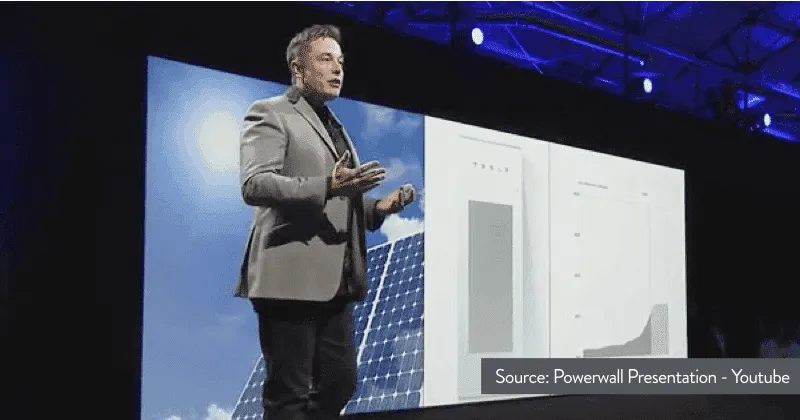
Imagine if Elon had merely used text to communicate those grandiose ideas, the presentation would have inevitably tanked quickly (think something reminiscent of an early Bill Gates presentation).
When you’re designing your next slide deck, try to incorporate a couple of evocative images for a more memorable, persuasive and captivating presentation.
Presentation Idea #6 Use Visual Metaphors
Many of us retain information well through visuals, and sometimes, it is the best way to bring a concept or message across, ensuring that it stays in the audience’s mind.

Take this image for example, which has been used frequently in dozens of presentations, and which you’d have most likely come across at least once. The hidden iceberg beneath shows a depth that’s not seen by people, and is commonly used by speakers to demonstrate or relate to something unseen, or an underlying issue.
When you’re choosing an image, a video, or any other visual, make sure that the link to your message is clear enough for the audience to see the relation, while still remaining a little mysterious for them to figure it out themselves. For a message that needs more than a static slide, a short animated explainer video is worth considering.
Presentation Idea #7 Use Live, Physical Props
There are times where you wish to explain or emphasize a concept or an idea. Unfortunately, not everyone can visualize the same way you do, or know exactly what you’re thinking. In these cases where you’re sharing something abstract, physical props can make a huge difference in supporting your talk, and even add a level of novelty and intimacy when used appropriately.
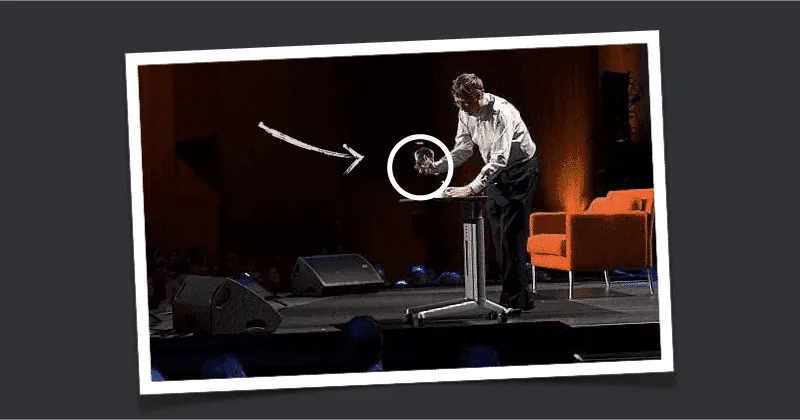
One good example you can learn from would be Bill Gates’ TED talk. In his speech, he discussed about the issue of malaria, while releasing a jar of live mosquitoes into the audience to highlight or ‘shock’ the audience into realizing the importance of malaria prevention.
The move was dramatic and definitely impactful, but most importantly, it pushed the listeners to think from a different perspective.
When you choose your props, think of the main message you’re trying to bring across. Using too many can backfire and bore your audience, so use this technique sparingly.
Presentation Idea #8 Have Obvious Presentation Transitions
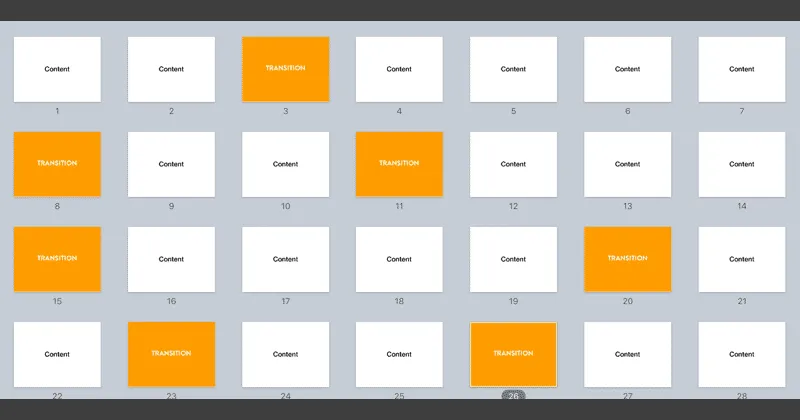
How many times have you delivered a presentation halfway, only to notice your audience members looking incredibly lost?
If you lack the time to work on your narrative, try to include transitions, which act as ‘visual signposts’ that guide your audience and you through the presentation.
These do not need to be complex; in fact, it can be extremely simple. In your presentation deck, instead of using the same background throughout, decide on an alternative color or style to differentiate your transition slides from every other slide. These will act as your ‘markers’ to visually indicate to your audience that you’re moving on to your next point. If they got lost anywhere during your presentation, you’ll be able to jolt them back on track.
Once you’ve decided on what these would look like, insert these at specific junctures of your presentation such that they stands out clearly from the rest of the slides.
Presentation Idea #9 Use Quotes to Make Your Point
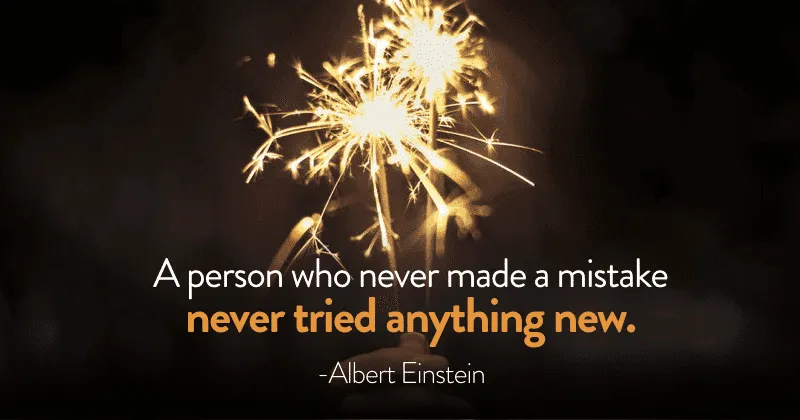
As you’re about to conclude your presentation, you’ll probably see heads twitching, bodies fidgeting, and cellphones appearing. It’s not an uncommon sight. We generally have short attention spans, and knowing that a presentation is about to end tempts us to begin checking our phones and getting ready to leave.
To maximize your audience’s remaining attention, a good way to sum up your points and leave an impression would be through a quote.
You may wonder, “If I’m just going to echo what others have said, won’t that reduce my credibility as a speaker?”
Absolutely not! As long as you reference a line that is brief and contextualized to your speech, your chosen quote could serve as a springboard to bring your audience back to the ‘big picture’.
For example, the 2003 World Champion of Public Speaking, Jim Key, quoted Martin Luther King, saying, “Dr. Martin Luther King, Jr., one of the greatest dreamers of our age, said, “The time is always right to do what is right”.”
He then followed it up with his own interpretation: “That means if it’s right for us to dream as children, then it’s just as right for us to dream as adults.”, before highlighting his message: “The question is: do we have the courage to dream?”
Sharing a quote can also highlight your domain knowledge and preparation, especially if you are, or would like to gain stead as a market leader. You can craft a quote based on your own words, or modify a popular one to match your situation.
The power of quotes and their ability to add credibility to a story should not be underestimated. They can also serve as guides or ‘reminders’ to keep the audience and the story on track. With a simple quote, you now have a good springboard to launch your next talking point. Of course, do remember that you will need practice to pull it off smoothly!
Presentation Idea #10 Try Having One Headline Per Slide
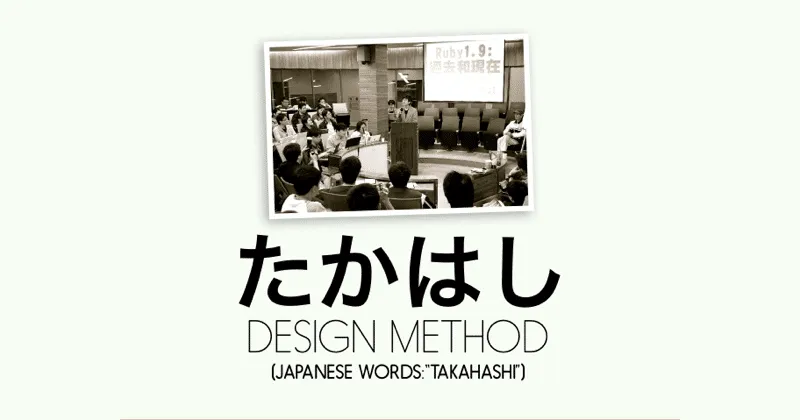
Many people have frequently debated on the ‘right amount’ of words each slide should contain. If you’re daring, here’s a radical idea which you can try: having only one word or headline per slide. There have been two popular proponents of this method, Masayoshi Takahashi and Lawrence Lessig.
Masayoshi Takahashi is a programmer who gained notoriety through his unusual presentation style at RubyConf. When he dabbled in PowerPoint for the first time, he found that having one word or phrase per slide worked well for Japanese text, and brought his audiences through the presentation effectively.
The second popular originator of a similar method is Lawrence Lessig, a professor at Harvard who began presenting in an unusual way: Having only one word, phrase and/or image in each slide moving in rapid succession as he spoke. His presentation decks usually contain hundreds of slides, which goes to show that your presentation should not be limited by a number of slides. Interestingly enough, the method was proven to be pretty effective in his lectures and he soon had a chance to show it off on the TED stage:
The Takahashi method and Lessig method force your audience to listen to you in order to understand the presentation, ensuring that you have their full attention. However, do be cautious as this should not be applied in every situation. If used in a more serious setting, it may backfire as it can be jarring.
If you’re unsure whether you will be able to pull this off, try to start off by incorporating this method in a couple of slides. The variety and change of pace can prove to be a refreshing one for your audience, keeping them engaged in your presentation.
Presentation Idea #11 Contrast What Is With What Could Be
Presentation expert Nancy Duarte calls this shape the Presentation Sparkline: great talks move the audience back and forth between what is and what could be. Each swing widens the gap between the two, and that gap is what makes the audience want to move.
Most business presentations describe the future and skip the present. Without the contrast, the better future feels like a nice idea rather than a reason to act.
How to apply it: list three pairs before you build a slide. For each pair, write one line on what is true today (a cost, a delay, a complaint) and one line on what could be true instead. Alternate them in your deck, and finish on a "could be" before you make your ask.
Example: an IT team asking for a self-service portal could pair "Today, a password reset waits in a shared inbox for two days" with "Staff reset it themselves before their coffee cools", then repeat the pattern for onboarding and access requests.
Presentation Idea #12 Give Your Answer on the Second Slide
Senior audiences want the conclusion first. Barbara Minto's Pyramid Principle puts the main answer at the top and the supporting reasons beneath it. Building up to a big reveal on slide 20 feels creative to the presenter, but to a busy executive it feels like waiting.
How to apply it: write your recommendation as one sentence. Set it up in four short lines using Situation, Complication, Question and Answer, then put that answer straight after your title slide. Every slide that follows is a reason or a piece of evidence for it.
Example: "Situation: we planned a March launch in three markets. Complication: the payment partner in one market will not be certified until April. Question: do we launch two markets on time or all three late? Answer: we recommend launching all three in May, for three reasons."
Presentation Idea #13 Write Headlines That Tell the Story
A topic label such as "Q3 Sales" tells the audience what a slide is about. An action title tells them what to think about it. Swapping labels for full-sentence headlines is one of the quickest ways to make a deck clearer, and it costs nothing in design time.
How to apply it: rewrite every slide title as a short sentence that states the takeaway, ideally on one or two lines. Then run the headline test: read only the titles, top to bottom. If the story makes sense without the slide bodies, your structure works. If it jumps or repeats, fix the order before you touch the design.
Example: "Customer churn" becomes "Churn is concentrated in first-year mid-market customers who skipped onboarding." The chart underneath stays the same; the audience now knows where to look.
Presentation Idea #14 Run a Live Poll to Find Out Where the Room Stands
You often walk in not knowing whether the room agrees with you, doubts you or has not thought about the topic at all. A live poll tells you in under a minute, and it gives every person a voice, including the quiet ones who would never raise a hand.
How to apply it: ask one question with no more than four options, using a tool such as Slido, Mentimeter or Microsoft Forms. Show the results on screen as they come in, then let your next few minutes respond to what the room said. Keep a show of hands as a backup in case the Wi-Fi fails.
Example: open a quarterly planning session with "How confident are you that we will hit the Q4 target? Very, somewhat, not very, not at all." If most of the room says "not very", start with the risks rather than the plan.
Presentation Idea #15 Show One Chart With One Point
Data does not speak for itself. Most business charts show everything the spreadsheet holds and leave the audience to find the meaning. A creative data slide does the opposite: it decides what the data means and makes that one thing impossible to miss.
How to apply it: write the insight as the slide title. Grey out every series except the one that matters and give that one your single highlight colour. Label it directly on the chart instead of using a legend, add one short callout at the moment that matters, and move the full table to the appendix. Our guide to data storytelling in presentations walks through this step by step.
Example: a monthly revenue chart for five regions becomes "The North region is the only one in decline, starting the month a new competitor opened", with four grey lines, one orange line and a callout at June.
Presentation Idea #16 Build Complex Charts Step by Step
A dense chart revealed all at once makes people read instead of listen. Building it in stages lets you explain how to read it before the data arrives.
How to apply it: start with the empty axes and say what they measure. Reveal one series, explain it, then add the next. In PowerPoint you can do this by duplicating the slide and adding one layer each time, or by animating the chart to appear by series. Tell the audience what to look for before each reveal, not after.
Example: for a pricing review, show the market price range first, then your current price, then the competitor that just undercut you, then the proposed new price. Four clicks, one story.
Presentation Idea #17 Turn Big Numbers Into Something People Can Picture
Large numbers are abstract, and abstract ideas slip away. In Made to Stick, Chip and Dan Heath list being concrete as one of six traits of memorable ideas. A number becomes concrete when you translate it into people, time or objects your audience already knows.
How to apply it: for each key figure, try dividing it by headcount, by working days or by customer. Or compare it with something in the room. Check your arithmetic, then say the translated version out loud and keep the raw figure in small type for those who want it.
Example: "Our team spends 1,200 hours a year on manual reporting" becomes "That is 30 full working weeks a year, the equivalent of one person doing nothing but reports from January to July."
Presentation Idea #18 Show a Before and After
Describing an improvement asks the audience to imagine it. Showing the same thing before and after lets them see it for themselves, and seeing is easier to believe than being told. It works for processes, designs, dashboards, customer journeys and results.
How to apply it: use the same frame, scale and angle for both versions, place them side by side or on consecutive slides, and highlight only what changed. Label them plainly ("Before" and "After") and add one line on what the change made possible. If you use a client's material, get permission first.
Example: an operations lead proposing a simpler approval flow shows the current 14-step process map, then the proposed six-step version at the same scale, with the eight removed steps faded out.
Presentation Idea #19 Demo It Live, With a Backup
If your idea is a product, a tool or a new way of working, watching it work is more convincing than any screenshot. A live demo also changes the energy in the room, because nobody knows exactly what will happen next.
How to apply it: script the demo around one task completed from start to finish, and keep it short. Use clean sample data, increase the zoom so the back row can read the screen, and switch off notifications. Record a backup video of the same steps in case the network or the software lets you down.
Example: instead of ten slides on a new quoting tool, a sales operations manager creates a real quote in the tool in front of the sales team, from customer request to manager approval.
Presentation Idea #20 Borrow a Timed Format Such as PechaKucha or Ignite
Constraints force focus. PechaKucha is 20 images, each advancing automatically after 20 seconds. Ignite is 20 slides at 15 seconds a slide, five minutes in total. When the slides move on whether you are ready or not, you cut every line that does not earn its place.
How to apply it: use a timed format for team updates, project reviews or internal knowledge-sharing sessions, where a group of speakers each get a short slot. In PowerPoint, set every slide to advance after a fixed time on the Transitions tab, then rehearse until your words fit the timing.
Example: a monthly town hall where four project leads each give a five-minute Ignite-style update keeps the meeting to twenty minutes and stops any one update from taking over.
Presentation Idea #21 Let the Audience Choose the Order
A linear deck assumes you know what the audience wants to hear first. When you do not, give them the choice. PowerPoint's Zoom feature lets you build a menu slide with a tile for each section; you click a tile to jump to that section and return to the menu when it ends.
How to apply it: group your content into three to five sections that each make sense on their own. Insert a Summary Zoom or Section Zoom (Insert, then Zoom), open on the menu and ask, "Where would you like to start?" Make sure your conclusion and ask are reachable from the menu so you can finish there whatever path you take.
Example: in a quarterly business review with a client, offer four tiles: Results, Risks, Budget and Next steps. A client worried about cost will pick Budget first, and you address their real concern straight away.
Presentation Idea #22 Turn Your Agenda Into the Audience's Questions
"Agenda: Background, Findings, Next steps" could belong to any presentation ever given. An agenda written as the questions your audience brings into the room tells them, from the second slide, that you will answer what they care about.
How to apply it: before the meeting, ask two or three attendees what they need to know. Write your agenda as three questions in their words. Reuse each question as a section divider (this pairs well with the transition slides in Idea #8) and tick it off as you answer it.
Example: a finance update becomes "Why did costs rise in Q3? Which of those causes can we control? What do we need from you today?"
Presentation Idea #23 Ask for a Guess Before You Reveal the Number
A number you announce is information. A number the audience has just tried to guess is an answer to a question they now care about. Asking for a guess opens a gap in their knowledge, and people pay attention until the gap is closed. Made to Stick calls this being unexpected.
How to apply it: show the question on its own slide. Ask for a show of hands across three or four ranges, or ask everyone to write a number down. Then reveal the real figure on the next slide and talk about the gap between the guesses and the answer.
Example: "What share of our support tickets are password resets? Under 10%, 10 to 25%, 25 to 50%, or over half?" Whatever the real answer is, the room will remember it far better than if it had been a bullet point.
Presentation Idea #24 Give the Room a Two-Minute Task
Adults learn best when they apply an idea to their own problems, not when they are told about it. That is how we run our workshops, and it works just as well in a meeting or a conference session. A short task turns listeners into contributors and gives you material to build on.
How to apply it: give pairs or small groups one specific prompt and a visible time limit. Ask for a one-line answer, collect two or three, and use them in the next part of your talk. Online, use breakout rooms or ask everyone to type their answer in the chat at the same moment.
Example: "Turn to the person next to you. Name one step in our approval process you would remove, and why. You have two minutes." The answers become the starting point for the proposal you present next.
Presentation Idea #25 Answer the Biggest Objection Before Anyone Raises It
Every audience arrives with doubts. If you leave the biggest one unspoken, it sits in the room and colours everything you say. Naming it yourself shows that you have thought it through and builds trust faster than any claim on a slide.
How to apply it: list the three toughest questions your audience could ask. Pick the strongest and raise it out loud: "You might be wondering..." Answer it with PREP: your Point, the Reason, an Example, then the Point again. Keep backup slides for the other two in your appendix.
Example: "You might be wondering why we would switch vendors in the middle of a contract. The short answer is that staying costs us more. Here is the comparison over the next 18 months."
Presentation Idea #26 Play a Short Video Clip
Some things are better shown than described: a customer explaining a problem in their own words, a site the audience has never visited, a process happening in real time. A short clip also gives the audience a break from your voice and resets their attention.
How to apply it: keep the clip to a minute or two, embed it in the deck rather than linking to a website, and turn on captions. Before you play it, tell the audience what to watch for. Afterwards, say what it means for your point. Test the sound in the actual room before you start.
Example: a service team asking for budget to redesign its helpline plays a 45-second recording (with permission) of a customer being transferred three times, then shows the proposed new flow.
Presentation Idea #27 Draw It Live
A diagram that appears in full on a slide is something to read. A diagram you draw in front of people is something they watch being built, one line at a time, and they follow your thinking as it forms. It also feels more personal than a polished slide.
How to apply it: keep the drawing to five or six simple elements: boxes, arrows, a circle, a few words. Practise it until you can draw it while talking. On a flipchart, sketch faint pencil guidelines beforehand that only you can see. Online, use a digital whiteboard or a tablet shared on screen.
Example: a product manager sketches the customer journey as five boxes, then circles the step where most customers drop off and writes the drop-off rate next to it.
Presentation Idea #28 Start a Decision Meeting With Silent Reading
Some decisions need more detail than a slide can carry. In his 2017 letter to shareholders, Jeff Bezos described how Amazon's senior team writes narratively structured six-page memos and reads one silently at the beginning of each meeting. You do not need six pages, but the principle travels well: let people absorb the detail first, then use the meeting time to discuss it.
How to apply it: write a one- or two-page brief with your recommendation at the top. Hand it out at the start, give everyone ten minutes to read in silence, then open the floor to questions. Use slides only for the visuals the discussion needs.
Example: a regional head asking for approval to restructure two teams circulates a two-page brief at the start of the leadership meeting, and the discussion goes straight to the hard trade-offs instead of the background.
Presentation Idea #29 Make Two Versions: One to Present, One to Send
A slide built for you to speak over should be sparse. A deck that gets forwarded to someone who missed the meeting needs to make sense without you. Try to make one deck do both jobs and you end up with slides too dense to present and too thin to read.
How to apply it: build the presenting version first, with one point and one visual per slide. Then save a copy as the send-ahead version: fuller headlines, short explanatory notes and a summary page. Alternatively, put the detail in your speaker notes and share a PDF that includes them. Before you send either version, run it through our free deck checklist.
Example: a project lead presents a 12-slide update with large visuals, then emails a version of the same 12 slides with full-sentence headlines and two lines of notes under each chart.
Presentation Idea #30 End With One Specific Ask
"Any questions?" is how most presentations end, and it hands control of your last impression to whoever speaks first. A specific ask tells the audience exactly what you want them to do, which is the reason you presented in the first place.
How to apply it: state one decision, amount or date. Make the first step small and easy to agree to. Put the ask on your final slide and leave it on screen during questions, so it is the last thing people see. There are more ways to close in our guide on how to end a presentation.
Example: instead of "Thank you, any questions?", close with "We are asking you to approve a six-week pilot with two teams, starting next month, within the budget shown. If you agree today, we will brief both team leads this week."
So the next time you’re doing a talk, keep in mind these 30 creative presentation ideas:
Share a personal story during your presentation to get your message across effectively
Bring your audiences on a ‘Hero’s Journey’ using a monomythic narrative
Break your presentation down into three parts to keep your content memorable and bite-sized
Ask provocative questions to help your audience view things from a different perspective
Add meaningful images to create an impact and increase recall
Use visual metaphors to explain a complex concept or message so that it sticks
Support your presentation with live and physical props to stimulate the senses
Insert transitions to guide your audience through a lengthy presentation
Reference quotes to add credibility to your assertions
Experiment with using one headline per slide to keep things fresh and punchy
Contrast what is with what could be to create a reason to act
Give your answer on the second slide, then the reasons
Write headlines that state the takeaway, and check that they tell the story on their own
Run a live poll to find out where the room stands
Show one chart with one point, and grey out the rest
Build complex charts step by step
Turn big numbers into something people can picture
Show a before and after instead of describing the change
Demo it live, with a recorded backup
Borrow a timed format such as PechaKucha or Ignite
Let the audience choose the order with a Zoom menu
Turn your agenda into the audience’s questions
Ask for a guess before you reveal the number
Give the room a two-minute task
Answer the biggest objection before anyone raises it
Play a short video clip, and say what to watch for
Draw it live
Start a decision meeting with silent reading
Make two versions: one to present, one to send
End with one specific ask
Phew! We’ve finally reached the end of this behemoth of a post. These should give you enough fodder to spice up your next presentation. If you think we’ve missed anything, leave us a comment below!
Frequently asked questions
What is the PechaKucha presentation format?
PechaKucha is a presentation format where speakers show 20 slides, each lasting exactly 20 seconds, for a total of 6 minutes and 40 seconds. It forces concise storytelling and keeps presentations fast-paced and engaging.
How do you structure a presentation around a narrative hook?
Start with a compelling question, surprising statistic, or relatable problem that your audience cares about. Build your body content as steps toward resolving that opening hook, and close by returning to it, showing how the audience now has the tools to solve it. To draft that structure faster, see our AI presentation training.
What is the ideal length for a presentation slide deck?
Aim for roughly one slide per 1 to 2 minutes of speaking time. A 20-minute talk should have 10 to 20 slides. Each slide should communicate one key idea, using visuals instead of dense text blocks.
How can I make my presentation more interactive?
Give the audience something to do in the first five minutes. Run a live poll (Idea #14), ask for a guess before you reveal a number (Idea #23) or set a two-minute pair task (Idea #24). Then use what they said in the rest of your talk, so the interaction shapes the presentation instead of decorating it.
How do I make my presentation stand out?
Lead with the point, not the background. Put your answer near the start (Idea #12), write headlines that state the takeaway (Idea #13) and show one clear point per chart (Idea #15). Then add one memorable moment, such as a story, a prop or a live demo, and end with a specific ask (Idea #30).
Cite this article: Eugene Cheng. 30 Creative Presentation Ideas To Boost Your Next Talk. HighSpark, 2017. https://highspark.co/blogs/creative-presentation-ideas
Ready to put this into practice?
HighSpark's training programmes, trusted by 15,000+ professionals.
Explore Training