

Teams with Copilot Licences
Organisations that have bought Microsoft 365 Copilot, or are piloting it, and want people to use it on real work.
 Case study Refreshing Gupshup’s narrative for an AI-led communications market Learn more
 Case study Crafting a distinct brand identity for ChatAndBuild in an evolving AI landscape Learn more
 Case study Simplifying Prudential’s participating funds through storytelling Learn more
Not sure where to start?
 Featured service Corporate Training Learn more
 Featured course Business Storytelling Learn more
 Featured course B2B Sales Pitch Learn more
 Featured course Power Presentations with AI Learn more
 Featured course Team Building Learn more
“One of the most brilliant things is that you work on your actual, not hypothetical story, so you can immediately see the impact (of the course)” Irina, Marketing Director at Rapyd
“My stories now have more impact and the attention is on me. I feel naturally more confident and enthusiastic when presenting now.” Kenneth Low, Senior Manager, Manulife Singapore
“I had no proper sales process. The coaching has helped me close a $15,000 PR project in my first month and a half with them.” Christel Goh, Founder, Grow PR
“The skills the participants have taken away are outstanding!” Sam Lambooy, Education Manager at Abbott
“Our team was thoroughly impressed by the trainer’s positive energy and responsiveness during and before the event.” Han Li, Former Regional Marketing Manager, Universal Robots
MICROSOFT COPILOT COURSE
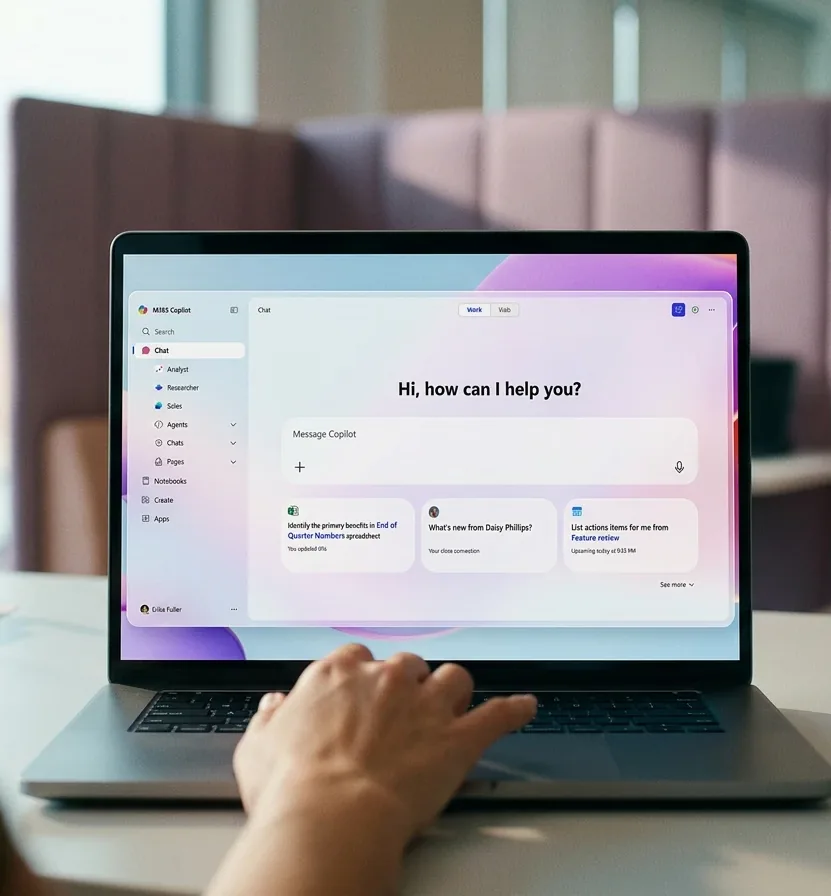
Copilot training for companies rolling out Microsoft 365 Copilot: hands-on use in the apps your team already works in, so licences turn into time saved.





Trusted by teams in best-in-class organisations





Facing issues such as:
Practise in Outlook, Teams, Word, Excel and PowerPoint on tasks from your own week, not demo files.
Understand in plain terms how your permissions shape its answers, and how to point it at the right files.
Build a team prompt library and agree habits for checking output before it goes out.
Organisations that have bought Microsoft 365 Copilot, or are piloting it, and want people to use it on real work.
People who need a hands-on session that supports a wider rollout, alongside your own communications and support.
Employees whose day is mostly Outlook, Teams, Word and Excel, and who want to spend less of it on routine drafting and catch-up.
Workshop Agenda
Each module takes one app: a short demo, a hands-on task on your own laptop, then a debrief. You try the task your way, see where Copilot misses, then learn the prompt or the file reference that fixes it.
Practice files are fictional or non-confidential and sit in your own tenant. Before the course we ask which tasks your teams handle, so the exercises match their work. Microsoft updates Copilot often, so we teach what your licences include at the time of training.
Format
Course Duration
Where It Runs
What to Bring
Apps we cover: Word, Excel, PowerPoint, Outlook and Teams.
Six modules over about four hours, with one 15-minute break; timings are approximate. A full day or 2 days adds practice in each app on your own files.
Talk and Discussion
Talk and Demo
Hands-on
Talk and Demo
Hands-on
Talk and Demo
Hands-on
Talk and Demo
Hands-on
Talk and Demo
Hands-on
Contact Us for Pricing
Request a QuoteA fictional project meeting, followed through Microsoft 365. It shows the habits the course builds: start from the right files, check before sending, and know what Copilot can see.
Copilot summarises the meeting and lists the actions. You check the actions against what was agreed before anyone relies on them.
Copilot drafts the follow-up email from the recap in the right tone. You edit it and check names, dates and owners before sending.
Point Copilot at the recap and your notes to produce a structured first draft of the project brief, then tighten it with follow-up prompts.
Ask Copilot to analyse the project budget workbook, then sanity-check totals, duplicates and odd values before quoting a figure.
Turn the Word brief into a first-draft deck and revise it with prompts, ready for your own judgement on structure and message.
What Copilot can see: it works with the files, emails and chats you already have permission to open, so your permissions shape every answer. Pointing it at the right files matters as much as the prompt.
Our programmes are led by facilitators that bring real, practical industry experience so you get the best outcomes.

Brand strategist and communications trainer
ACLP-certified trainer. Ex-Walt Disney, Christine is an experienced communicator and brand strategist, former business development head of a fast-growing F&B chain.

Communications specialist and facilitator
ACLP-certified trainer with nine years of communications experience. Razinah has trained teams from organisations including SMU, A*STAR, Shiseido and Schroders.

UX/Marketing Strategist, Executive Educator
Adjunct lecturer and digital strategist with over 10 years in marketing, UX design and digital learning. Founder of UNGRUMP.CO, and has designed and delivered programmes for organisations including Meta, MUFG and Columbia University. ACLP certified.

Managing Director, HighSpark
Forbes30U30 Asia Alum, seen on CNA, Inc, Business Insider. He's helped clients raise over US$480M in funding. Highly sought after advisor to C-Suites from firms like Nike, Prudential, Oracle.
Microsoft 365 Copilot is licensed separately from the Microsoft 365 plan it sits on, and Microsoft changes names and bundles over time. Ask your IT team or Microsoft partner what your organisation holds. We teach the Copilot features your licences include at the time of training.
Fees depend on format, group size and tailoring, and certificates are available on request upon successful completion. Cost, data and funding answers for every AI course are in the Generative AI courses FAQ.
Product names and logos are trademarks of their respective owners, used for identification only. HighSpark is an independent training provider and is not affiliated with, sponsored or endorsed by them.
If your company has approved a different assistant, the matching course uses the same hands-on format.
Fill out the brief form and we'll get back to you with an estimate and discuss a plan for your company.
We'll arrange your meeting with a consultant to:

Our flagship business storytelling training workshop enables teams to utilise narratives to drive business and team goals.

Equip teams to design clear, compelling visuals that sharpen messages and help audiences grasp ideas quickly and confidently.

Helps professionals turn complex data into clear, persuasive stories that support insight-driven decision-making.
Tell us how many licences you have and which apps matter most. We will suggest a format and send a quote.
Plan Copilot Training